


Printer ID #104705
Print from anywhere.
Princh is a convenient app for those who want the convenience of printing at the library from a personal device.
No need to email us your file to have us print it.
You can access it all from Princh.
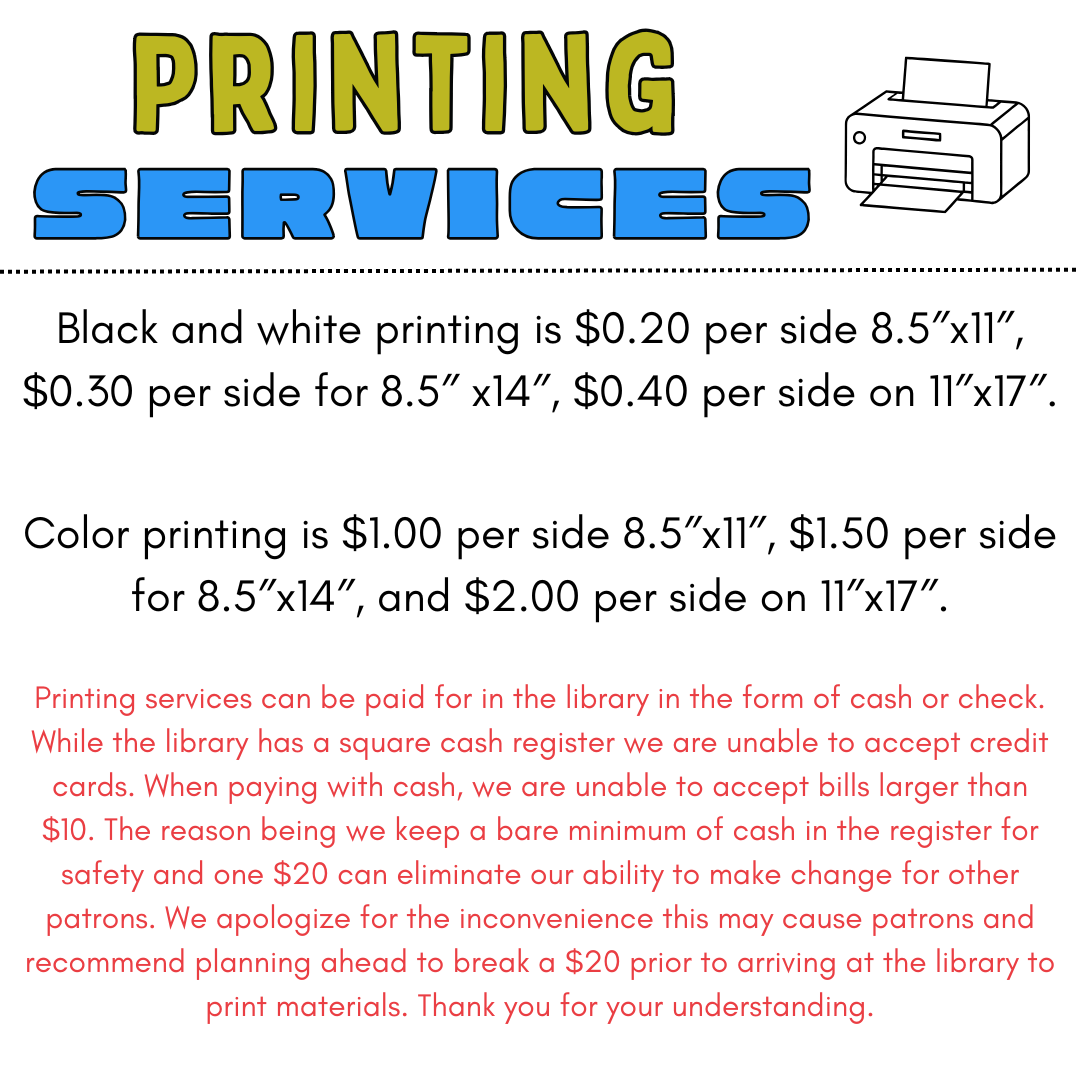
Payment for printing.
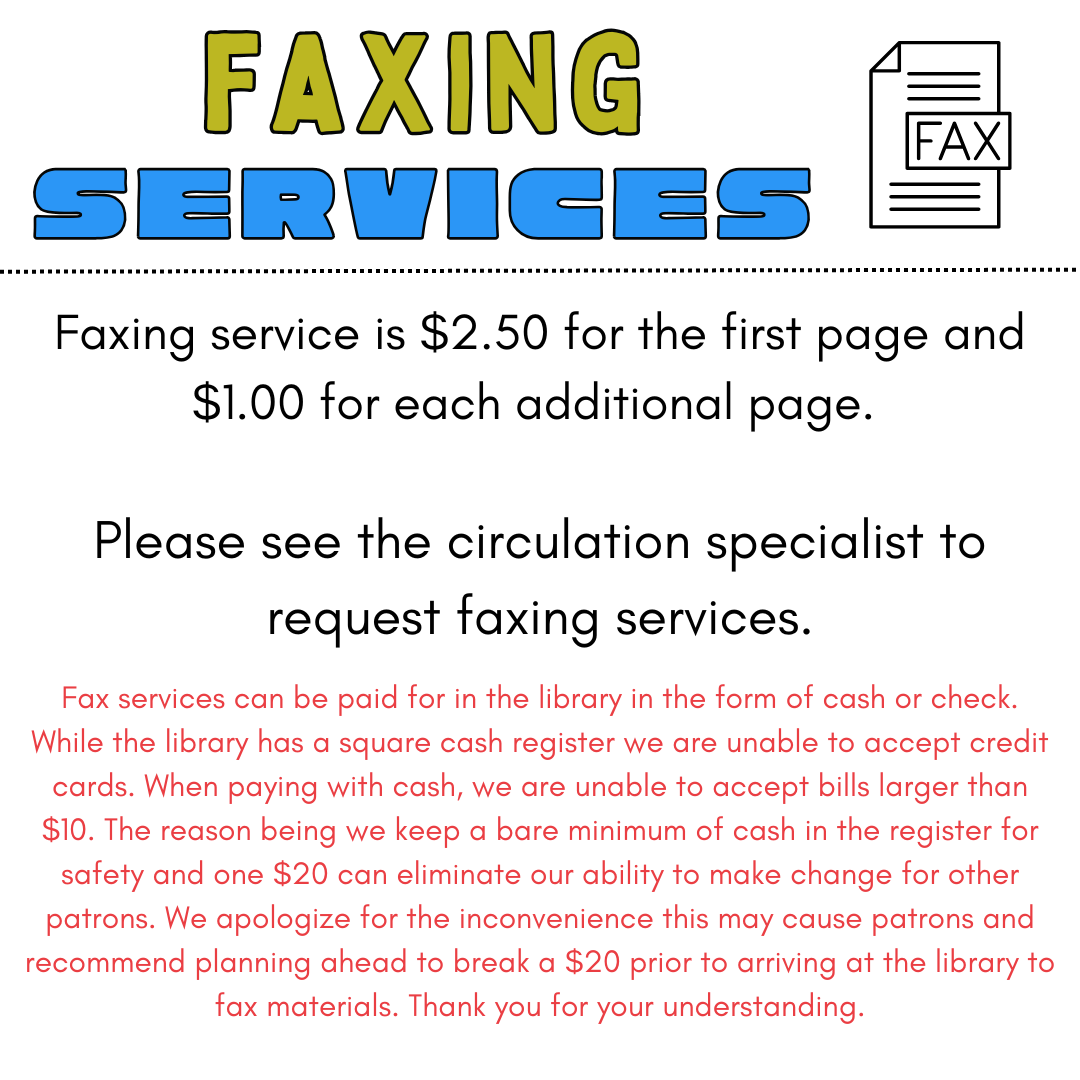
Princh users must pay for their printing at the library circulation desk before the Princh request is released for payment. The library accepts cash or checks for printing services. The library is unable to accept bills larger than $10.
Get started with Princh
- Download the free Princh app from Google Play or wherever you get your apps.
- Printing from your phone or tablet.
- Check the printing from your iPhone video guide or the printing from your Android video guide to see the steps you need to follow to start.
-
Printing from your laptop.
-
Using an internet browser, go to print.princh.com webpage.
-
Check the printing from your laptop video guide to see the instructions.
-
- Go to your file and choose Princh as your “printer.”
- Tap to select printer.
- Enter the Library ID – (#104705).
- Select “Public Printer.”
- Choose your print settings: number of copies, print range, double sided printing and color or black and white printing.
- Preview your print.
- Select Print.
- Check the box for “I accept the terms and conditions”.
- Select “continue.”
- Choose your payment:
- pay using a payment card, pay with Paypal or pay at the Library Circ desk.
- If you would like to pick up your print-out during curbside service, we ask that you do not select pay at the desk.
- Type your full name and click ok.
- Schedule a pick-up with one of our staff.
If tech help is needed, apart from printing or emailing files, patrons need to schedule an appointment with Seth or Elizabeth. Seth is available for 30-minute appointments from 3:00 PM to 5:00 PM on Mondays and 10:00AM to 2PM, and 3:00 PM to 4:30 PM on Fridays. Elizabeth is available for 30-minute appointments from 9:30 AM to 11:00 AM on Saturdays. Every Wednesday from 11:00 AM to 1:00 PM Elizabeth is at the Senior Center of Langlade County for tech help no appointment needed however there may be a small wait.
When you make a tech appointment please fill out the Tech Help form completely and leave up to date contact information and make sure your voice mail is set up so we can leave you a message if you cannot get to the phone. Please bring relevant username and password information with you to all tech help appointments.